
Published On: June 15, 2025

Tell Your Travel Story Without Talking: Text-to-Speech in CapCut PC

Published On: June 15, 2025
Last Updated on: July 11, 2025
We May Earn From Purchases Via Links

Tell Your Travel Story Without Talking: Text-to-Speech in CapCut PC

CapCut brings text-to-speech to the table.

Tell Your Travel Story Without Talking: Text-to-Speech in CapCut PC

  • The staff at HomeTheaterReview.com is comprised of experts who are dedicated to helping you make better informed buying decisions.

It is hard to narrate a travel video, especially if you don't want to use your voice. Most content creators are stuck when it comes to narrating. That’s where a tool like CapCut Desktop Video Editor comes in handy.

One of the smart features is text-to-speech, by which you can add voice to your video without speaking. You just type your story, and the app reads it aloud.

This allows you to present your story continuously and artistically. From this guide, you can learn how to use text-to-speech and other AI features to stand out from other travel videos.
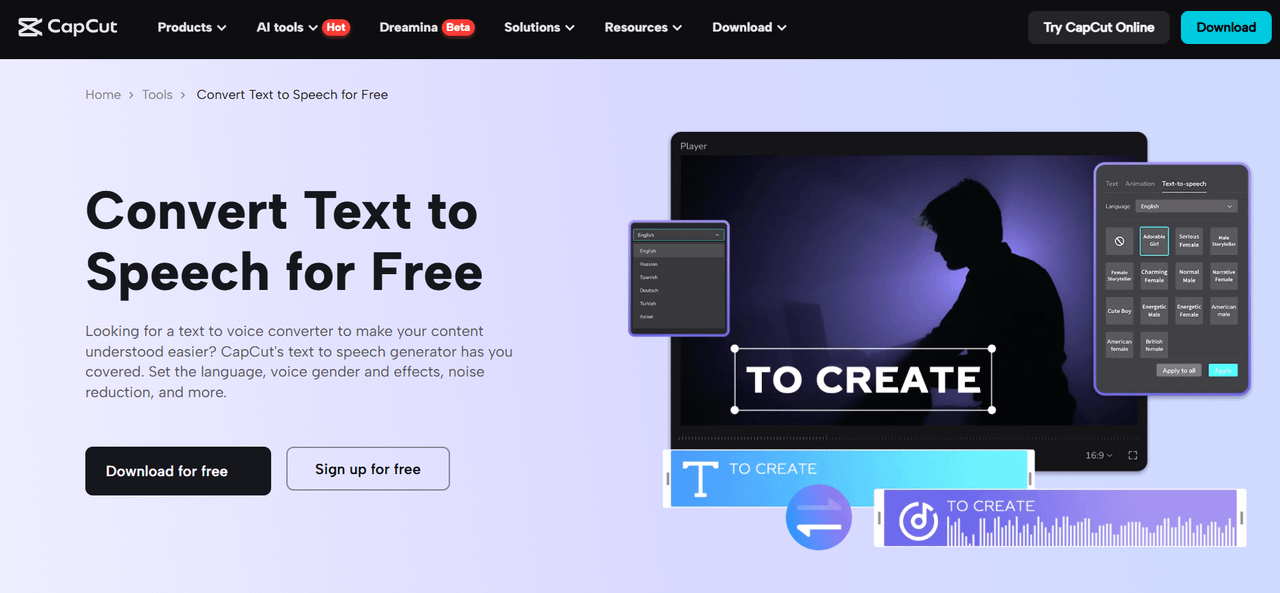
CapCut brings text-to-speech to the table. 4a088dce 4331 4534 a960 a002889c2c4d

Why Use Text-to-Speech for Travel Videos?

  • Reach more people: Not everyone can hear or talk well. Text-to-speech enables you to make videos that are easier for everyone to understand.
  • No need to record your voice: You don't have to record your voice if you are shy or don't want to talk. Just type your words, and CapCut Desktop Video Editor will do the talking for you.
  • Save time: It is fast to write your script. The software translates it into a voice with minimal effort. You do not need to do many takes or edit speech mistakes.
  • Maintain a constant tone: The AI voice generator in CapCut PC uses the same voice across your videos. This creates a smooth and clean impression for your content.
  • Protect your privacy: You don’t have to use your real voice. This helps keep your identity private while still letting you share your journey.
  • Speak in different languages: You can create voiceovers in other languages to reach people from many places and cultures.

Some voice options or extra settings in CapCut PC are only available with a paid plan.

Top Features of CapCut Desktop Video Editor’s TTS for Travel Storytelling

  • Numerous voices to choose from: You have a wide range of voice styles, tones, and languages to choose from. This helps to match your voice with your mood when traveling or recording for your narrative.
  • Change the voice sound: You can change the speed, pitch, and emphasis for every word. This makes your voiceover silky and naturally sounding.
  • Merge sound and video with perfection: The text-to-speech feature works well with music, video clips, and visual effects. It helps you create full-fledged travel videos that are full.
  • Watermark-free clean exports: With a paid plan on CapCut Desktop Video Editor, your exported video turns out free from any logo or mark.
  • Fast for a huge number of videos: You can voiceover many clips without repeatedly re-recording. It's helpful for travel vloggers and creators who post a lot.
  • Easy to share: You can share your finished video on social media, websites, or send it to friends by email, right from CapCut PC.
  • Compatible with other AI tools: You can also use tools like the AI video upscaler to improve video quality. It makes your video look crisp while your voice is clear.

Steps to Use Text-to-Speech in CapCut Desktop Video Editor

Step 1: Download and Install CapCut Desktop Video Editor

Go to the official CapCut website and download CapCut Desktop Video Editor. Install it on your Windows or Mac. Use the desktop version to access full editing tools, including text-to-speech.

Step 2: Import Your Travel Footage

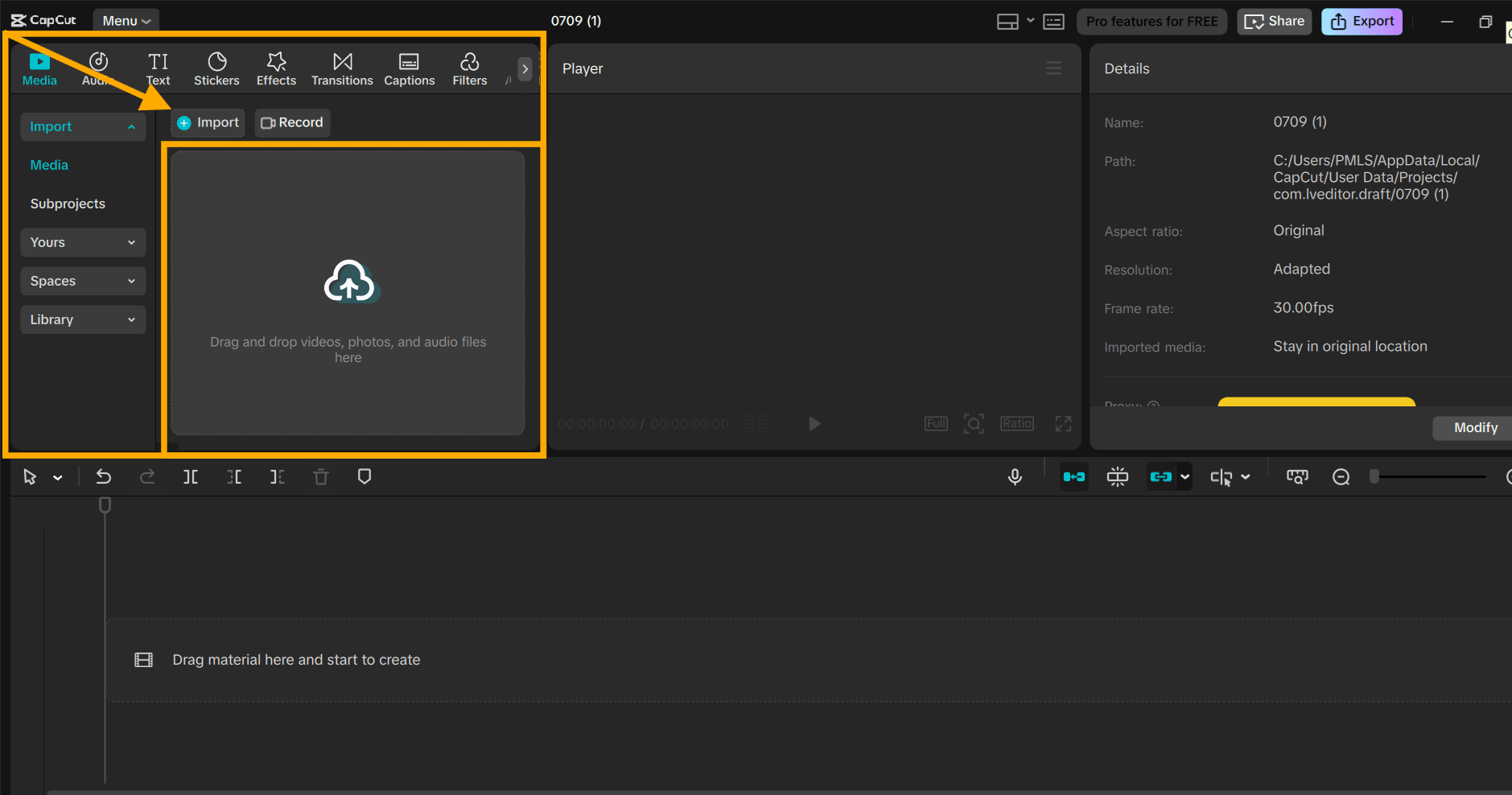
Open CapCut PC and create a new project to begin your video. Click the “Import” button to bring in your travel videos and photos.

Drag your clips to the timeline to start editing. Arrange the media in the sequence best portraying your traveling experience.
CapCut brings text-to-speech to the table. d751e98a 5a12 48c0 8dea dbbac590a81d

Step 3: Add Text-to-Speech Narration

Click the “Text” option from the menu on the left side. Type your travel story or script in the text area. Click on “Text-to-Speech” to turn your written story into a voiceover.

Pick a voice and language using the text to speech AI in CapCut PC. You can change the speed or pitch to match your video’s tone. Play the preview and make small changes until the voice feels right.
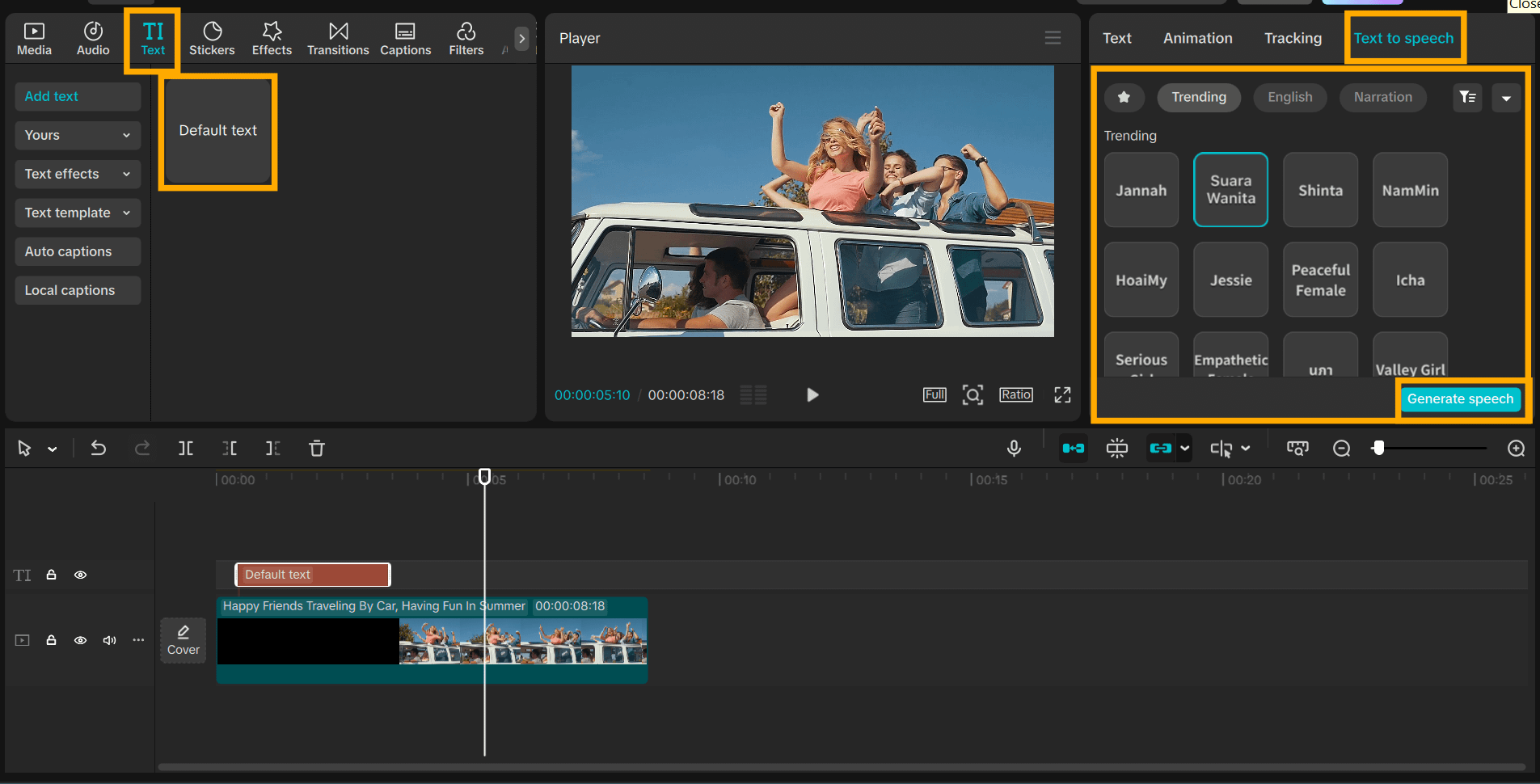
CapCut brings text-to-speech to the table. 92e3bf9d b028 49d9 833f 9122389123ad

Step 4: Edit, Export, and Share

Match your voiceover with video clips, music, and visual effects. Add effects like filters and transitions to give the final appearance a touch of finishing.

Click on "Export", select the resolution and format. Export your video and either save it or share it directly to social media using CapCut PC. Some export settings or features are paid-only.
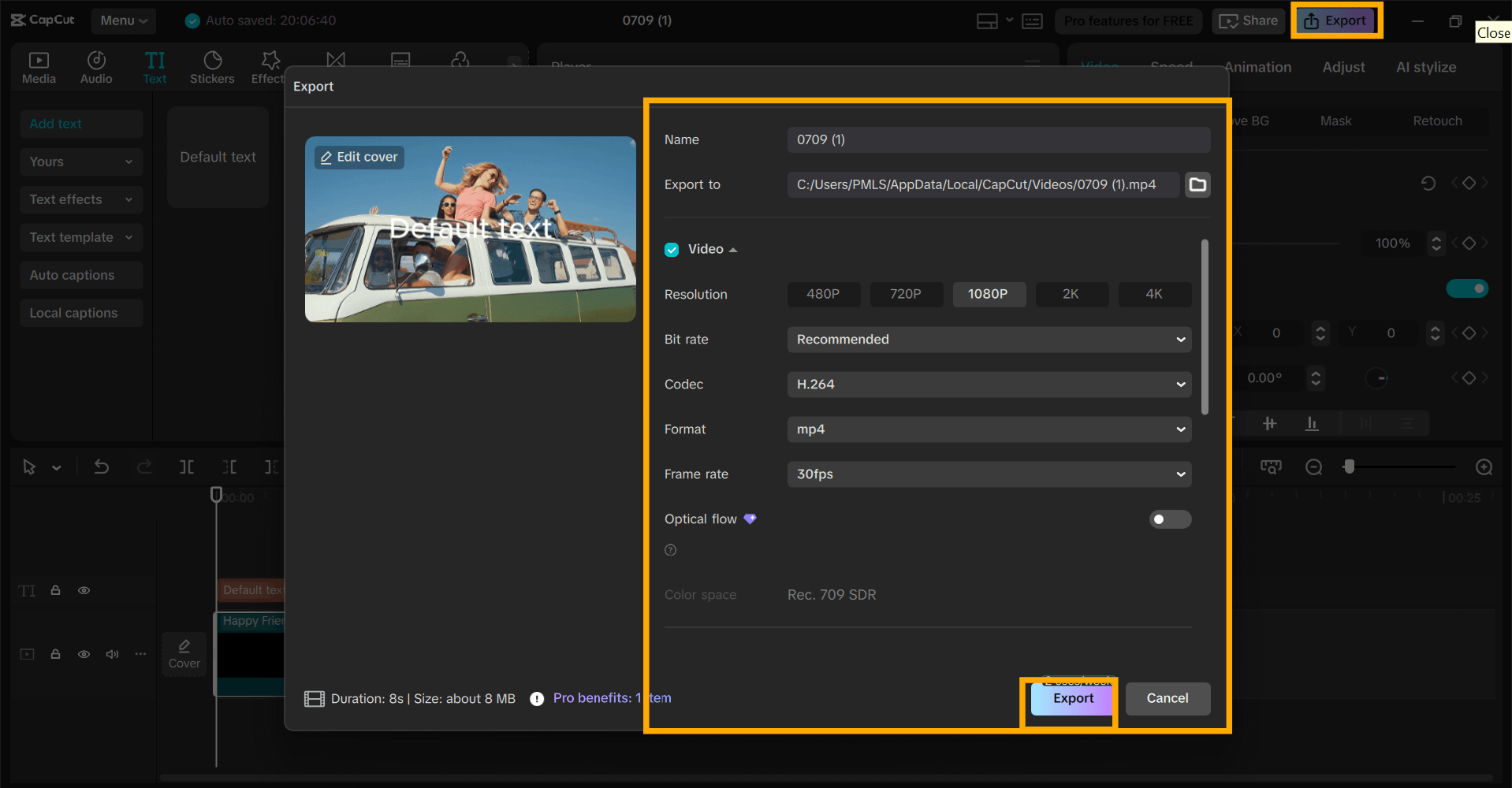
CapCut brings text-to-speech to the table. 702b0c79 f7e3 43e6 8af5 cd0c6999426c

Conclusion

With text-to-speech on CapCut Desktop Video Editor, it's easy to share travel stories without needing to speak to do so. It helps you create clear and smooth voiceovers in sync with your video. This feature is useful when maintaining your content is intimate, simple to comprehend, and ready for sharing with others.

Experiment with the TTS feature to give your videos a clean-sounding and complete feel. Download CapCut PC from the official website to get started. Remember, certain voices and premium features will require a paid subscription.

Begin telling your story, your way, in your voice in text.

Subscribe To Home Technology Review

Get the latest weekly technology news, sweepstakes and special offers delivered right to your inbox
Email Subscribe
© JRW Publishing Company, 2026
As an Amazon Associate we may earn from qualifying purchases.

magnifiercross
linkedin facebook pinterest youtube rss twitter instagram facebook-blank rss-blank linkedin-blank pinterest youtube twitter instagram
Share to...