The staff at HomeTechnologyReview.com is comprised of experts who are dedicated to helping you make better informed buying decisions.
Are you experiencing issues with your TV not playing particular video files? This is a more common problem than many people realize, so we researched it. So, in this article, we explain the various causes behind these playback issues and offer specific solutions to address each one. Our solutions will help quickly resolve your video playback problems and provide smooth and enjoyable viewing.
Why is Your TV Not Playing a Video File?
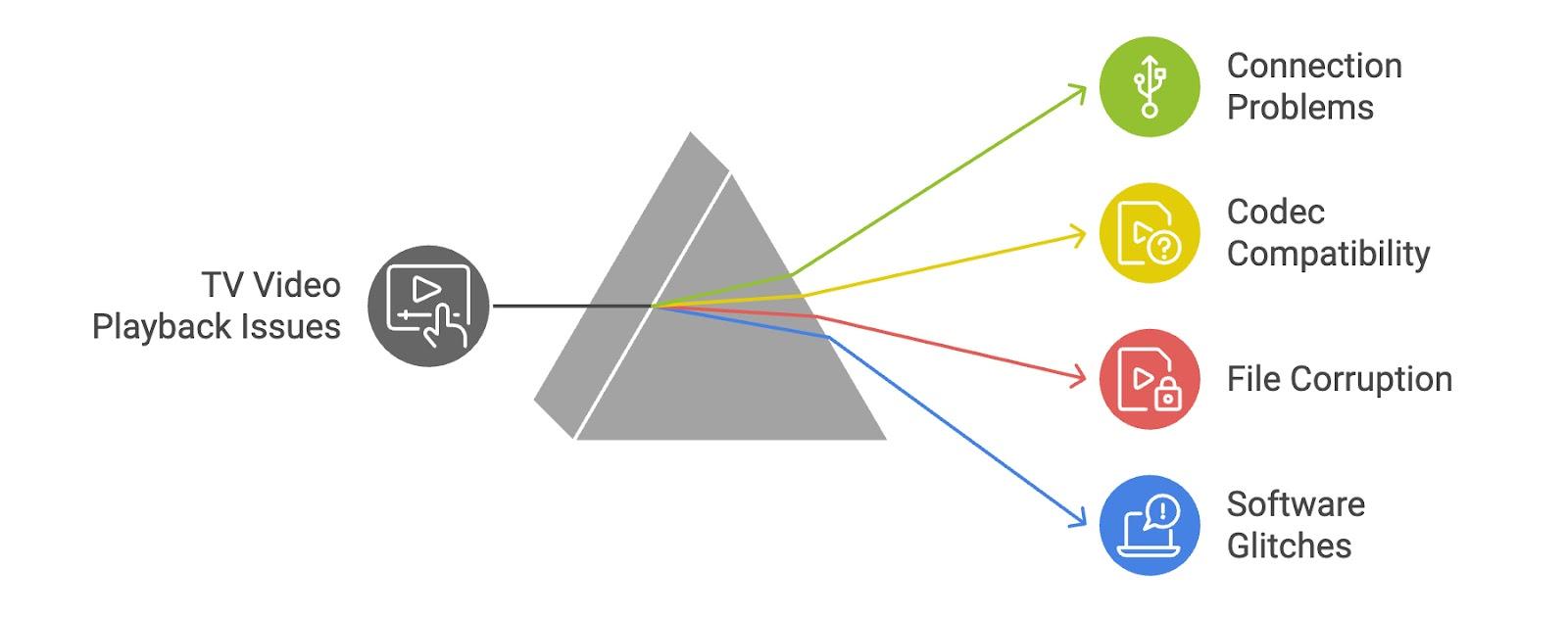
Several issues can cause your TV to fail to play a video file. These issues are generally simple to resolve. Below, we will consider the most common causes of this issue.
A common issue is the physical connections needed to play media from external devices. For example, a loosely connected USB might not work properly, or the port could be damaged or dirty. Connection cables like HDMI, component, or composite AV cables could also be faulty or not plugged in correctly. Checking that these connections are secure and the cables are undamaged can fix these problems.
Another issue is whether your TV’s codec matches the file. For instance, Samsung TVs usually only play MP4 files with the H.264/MPEG-4 AVC video codec and AAC audio codec. Your TV might not play if your video uses a different codec. Check your TV’s manual or the manufacturer’s website for supported formats and codecs to solve this. This will help you pinpoint and fix any codec compatibility issues.
Video files may not play if they are corrupted. Corruption can occur while you record, transfer, or download the video. A corrupted file often has a disrupted structure that makes it unreadable by your TV. Tools and software can repair corrupted video files and restore their functionality for playback on your TV. Below, we provide a step-by-step guide to repair MP4 files or other video formats to save your time.
In some cases, TVs fail to play any videos at all, whether from connected drives or streaming apps like Netflix, Plex, or YouTube, displaying various error codes instead. This problem can occur due to outdated TV software or temporary glitches in the TV’s operating system. Regularly updating your TV’s firmware and performing a soft reset (turning the TV off and on) can often correct these errors and restore playback functionality.
A Quick Step: Identify the Problem
Before we discuss methods to solve each issue described earlier, it is important first to identify the exact reason your TV is not playing a particular video file. This step allows you to apply the necessary fix precisely rather than attempting multiple solutions without direction.
Insert the media containing the video into another device, whether another TV or a computer.
Check if the device recognizes the media. If it does not, the problem likely lies with the storage device. Replace it and try again.
If the flash drive is recognized, attempt to play the video with a third-party player. These players often support a broader range of video formats and codecs.
If the video plays without issues on this player, your TV probably does not support the codecs used in the video.
The file is likely corrupted if the video does not play and the player either shows an error message or a black screen.
How to Solve the Problem That Your TV is Not Playing a Particular Video
Below, we provide step-by-step instructions to fix the issue of your TV not playing a particular video. We suggest that you carefully review each method and apply them sequentially to find the most reliable solution for your situation. This will help you systematically resolve playback issues and allow your TV to handle various video files smoothly.
Method 1: Check the Connection of the Device with the Video
We previously mentioned that a poor connection of a USB flash drive or other media device could prevent your TV from playing videos. If this is the cause of your problem, you should check and secure the connection.
Eject the flash drive or other device from your TV.
Reinsert it firmly to provide a tight connection. Make sure it fits securely into the port without any wiggle.
Power off the TV and unplug it from the power source.
Use compressed air to blow out dust and debris from the TV’s USB port. Clean the flash drive’s connector with a soft, dry cloth to remove dirt and grime.
If you use an HDMI or any AV cable to connect external devices, inspect the cables for signs of damage. Then, try using a different cable to see if the connection improves.
Test the flash drive on another TV or a computer to check if the device recognizes and plays the videos. This step helps determine if the issue lies with the original TV or the flash drive.
If other devices do not recognize the flash drive, consider replacing it with a new one. Faulty flash drives can often cause playback issues.
Method 2: Fix Corrupted Video File
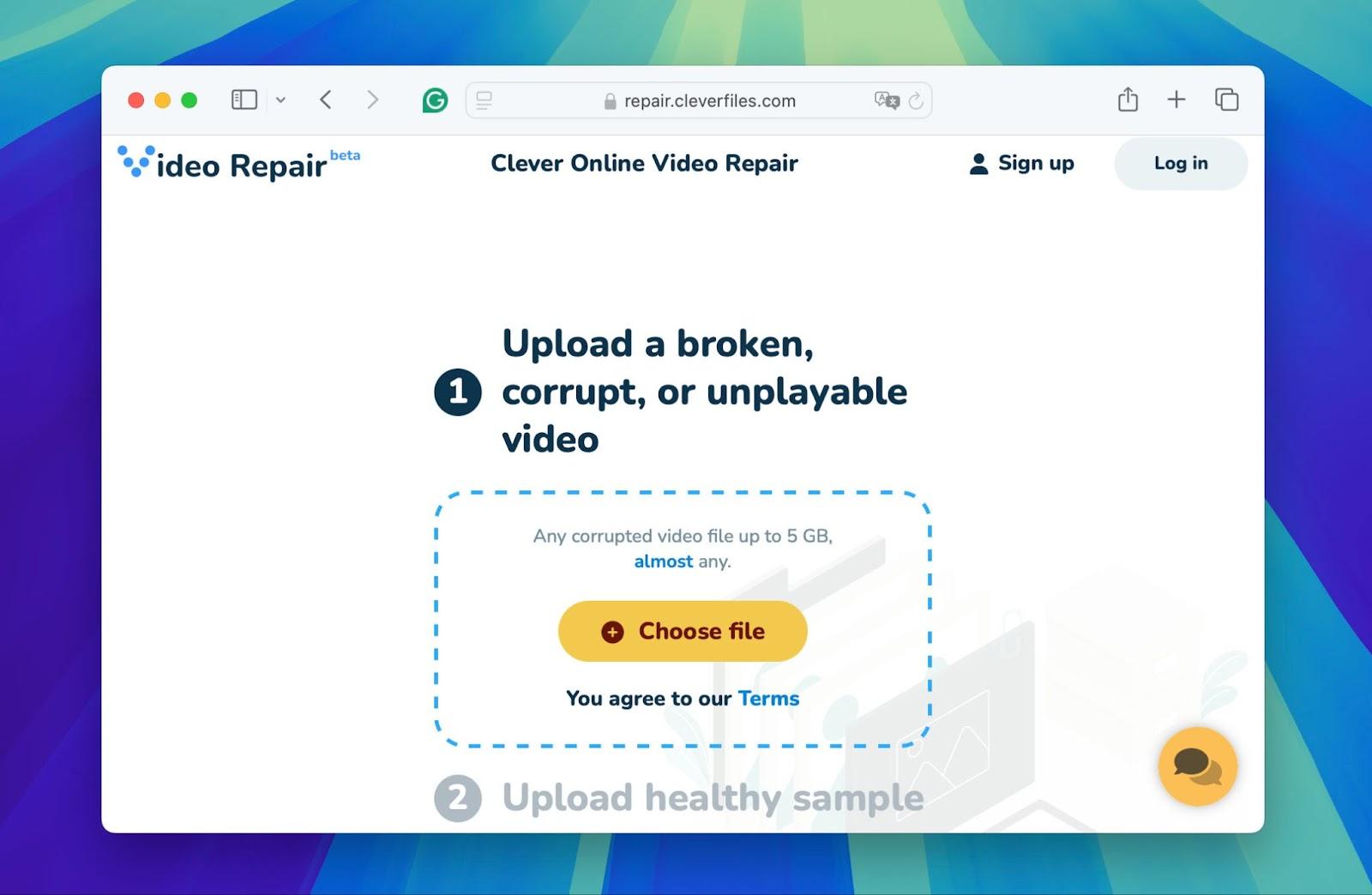
If you have determined that the issue with your TV not playing a video is due to a corrupted video file, you must use a specialized video repair tool. Most tools can repair severe corruption in the video, including missing components like metadata, header, and moov atom. We recommend Clever Online Video Repair because it is free and can repair videos in more than ten formats, including MP4, MOV, 3GP, and M4A. Despite its file size limitation of 5GB, this capacity should suffice for repairing most videos without issues.
To use Clever Online Video Repair, you also need a reference video. This means you should have a non-corrupted video recorded on the same device in the same format and settings as the corrupted one.
Connect the storage device containing the non-playing video to your computer. Then, transfer the video file to your computer’s hard drive. To avoid further corruption, confirm that the transfer was completed successfully without any interruptions.
Open your web browser and navigate to the Clever Online Video Repair website. Click on the upload area to select and upload the corrupted video file from your device.
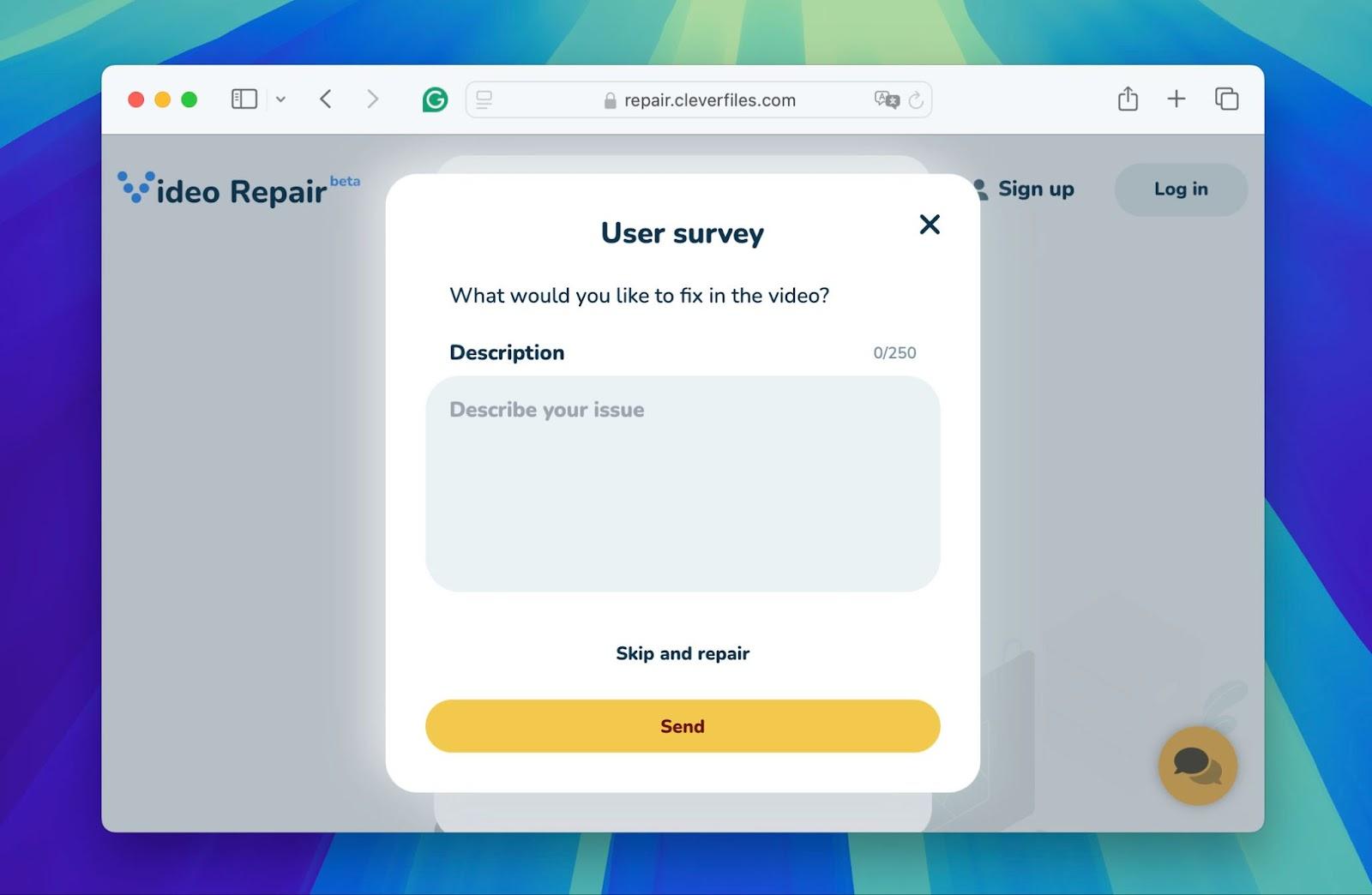
Provide a detailed description of the video issues, such as not playing on your TV and whether it played on other devices or before you transferred it to a flash drive.
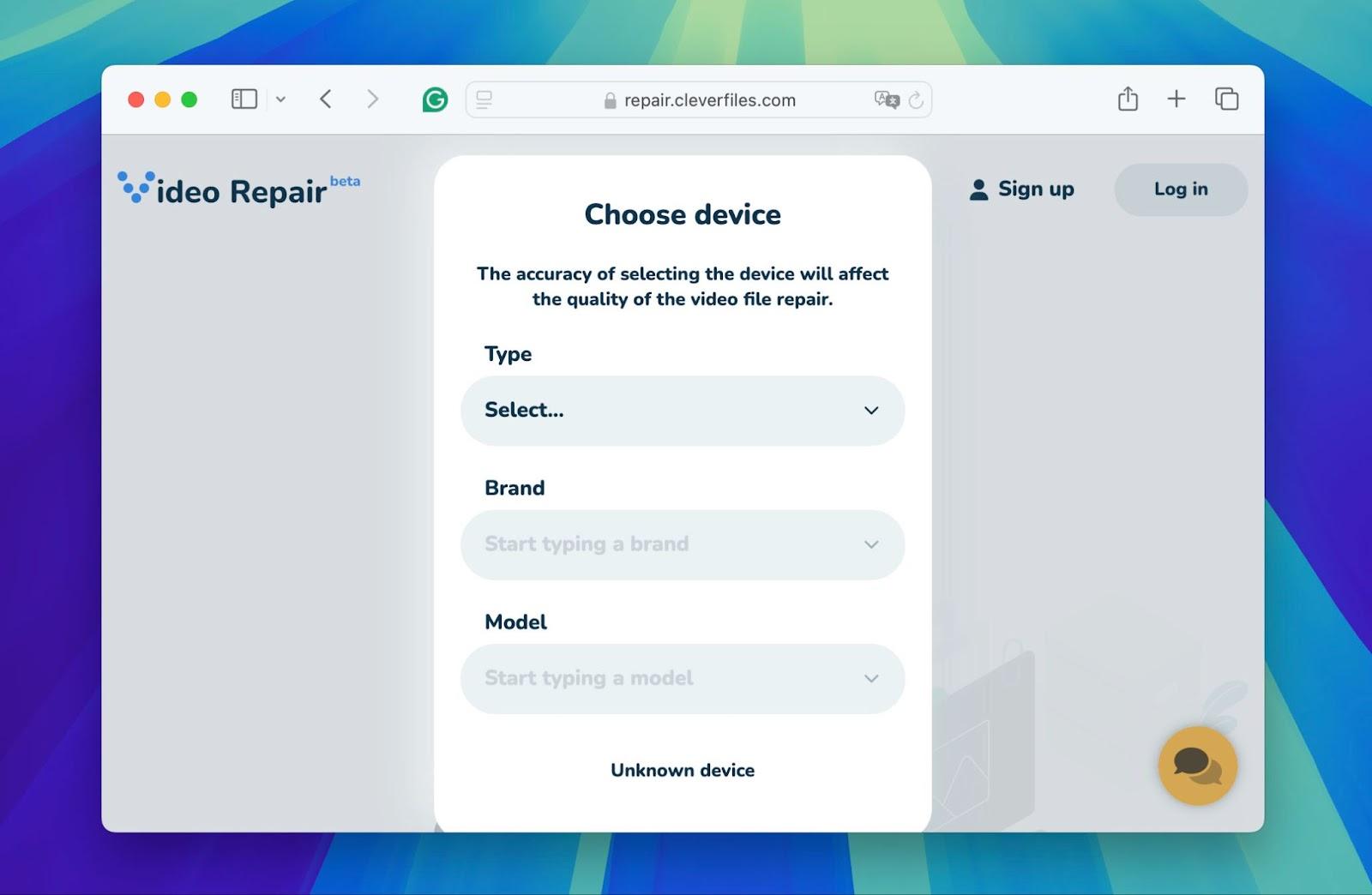
Enter details about the device used to record the original video, if known, to help optimize the repair process. If uncertain, select “Unknown device.”
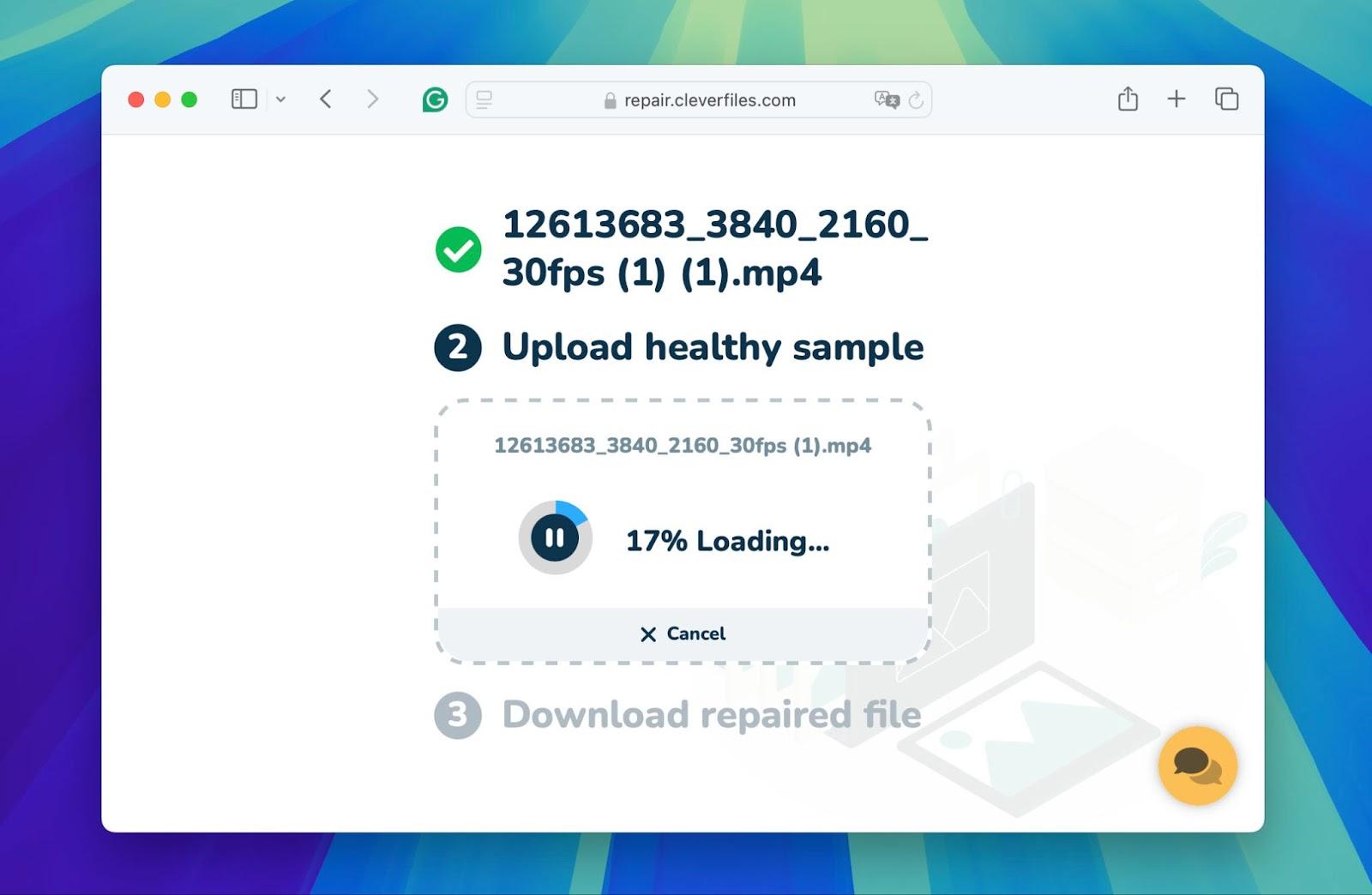
Upload a reference video that matches the recording conditions of the corrupted video.
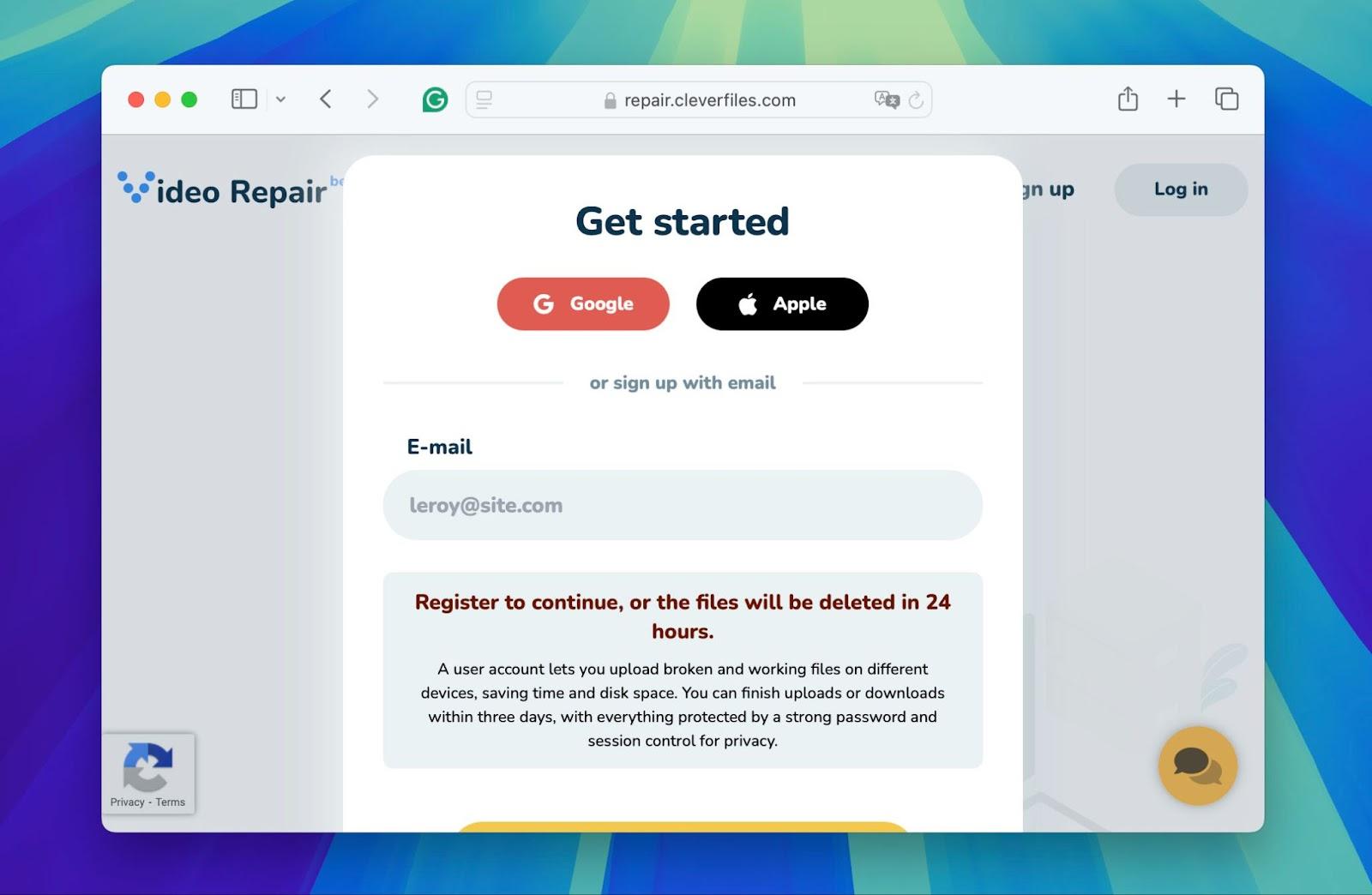
Sign up for an account or log in with your Google, Apple, or email to initiate and track the repair process. Once logged, the tool automatically starts repairing the video.
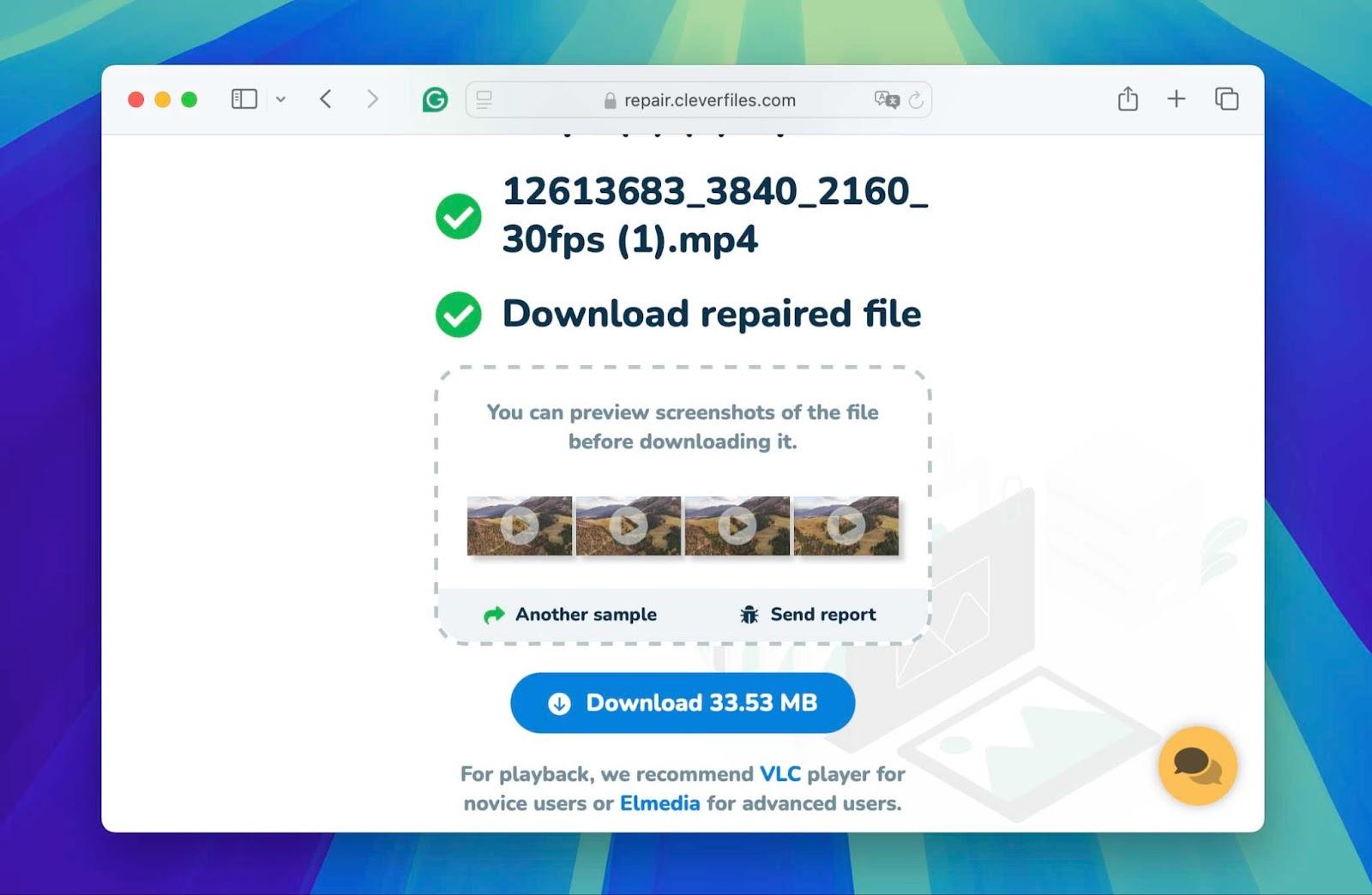
After the repair, preview the frames from the fixed video to verify they meet your expectations.
Download the repaired video to your device promptly to provide you with access to the fixed file.
Play the repaired video with any player to verify the repair's success.
If the video plays correctly on the computer, move it back to the original storage device. Then, reconnect the device to your TV and play the repaired video to confirm that it works correctly.
You can also use other video repair tools; they all work similarly. They usually require you to upload the corrupted file, repair it, and then download the fixed video.
Method 3: Convert the Video File to a Format Supported by Your TV
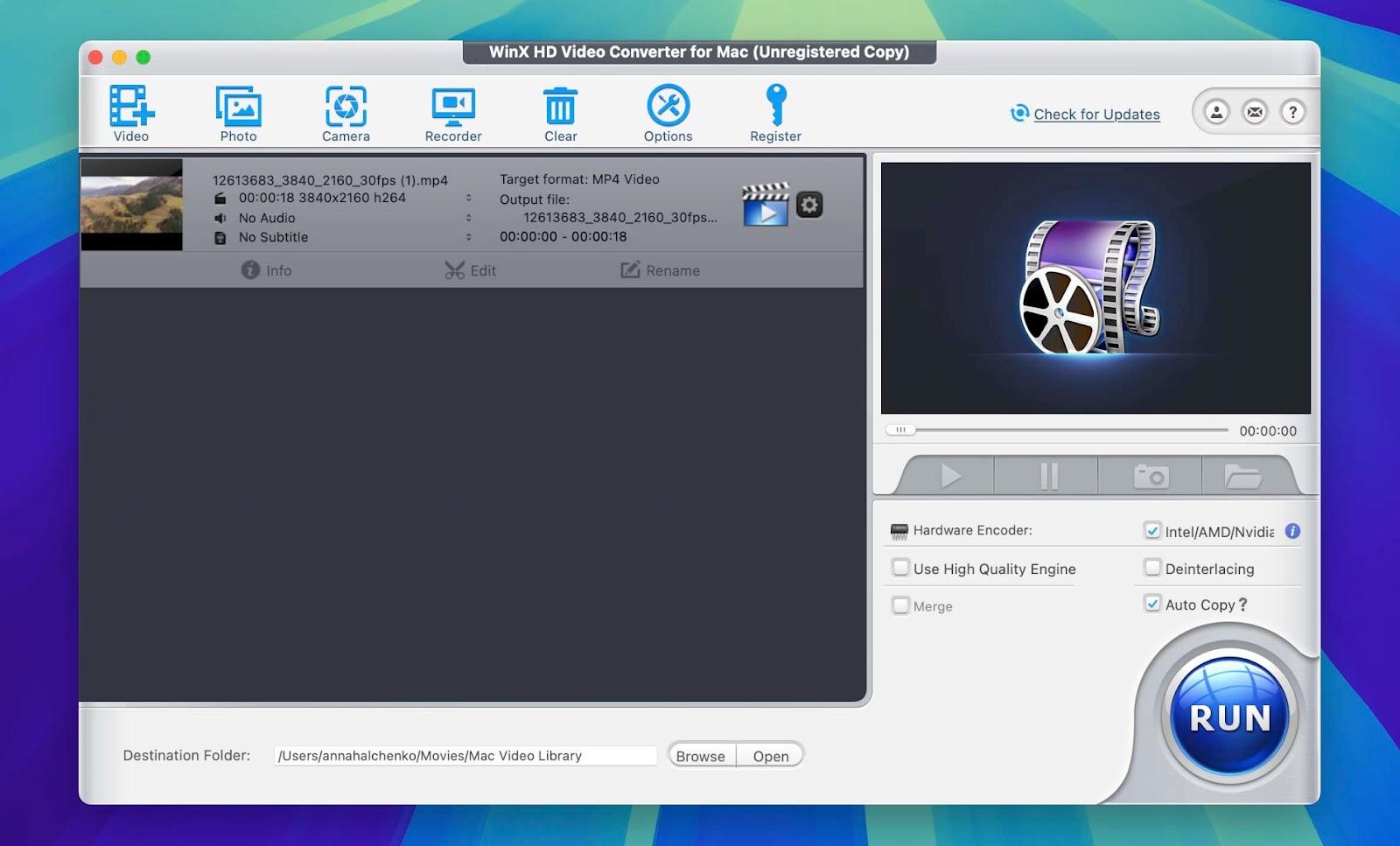
If the problem with video playback on your TV is due to codec incompatibility, you will need to use specialized software to decode and convert the video. Online solutions often only change the container without allowing you to select specific video and audio codecs. For this method, we will use winXvideo AI for this task, but you can use any similar software that meets your needs.
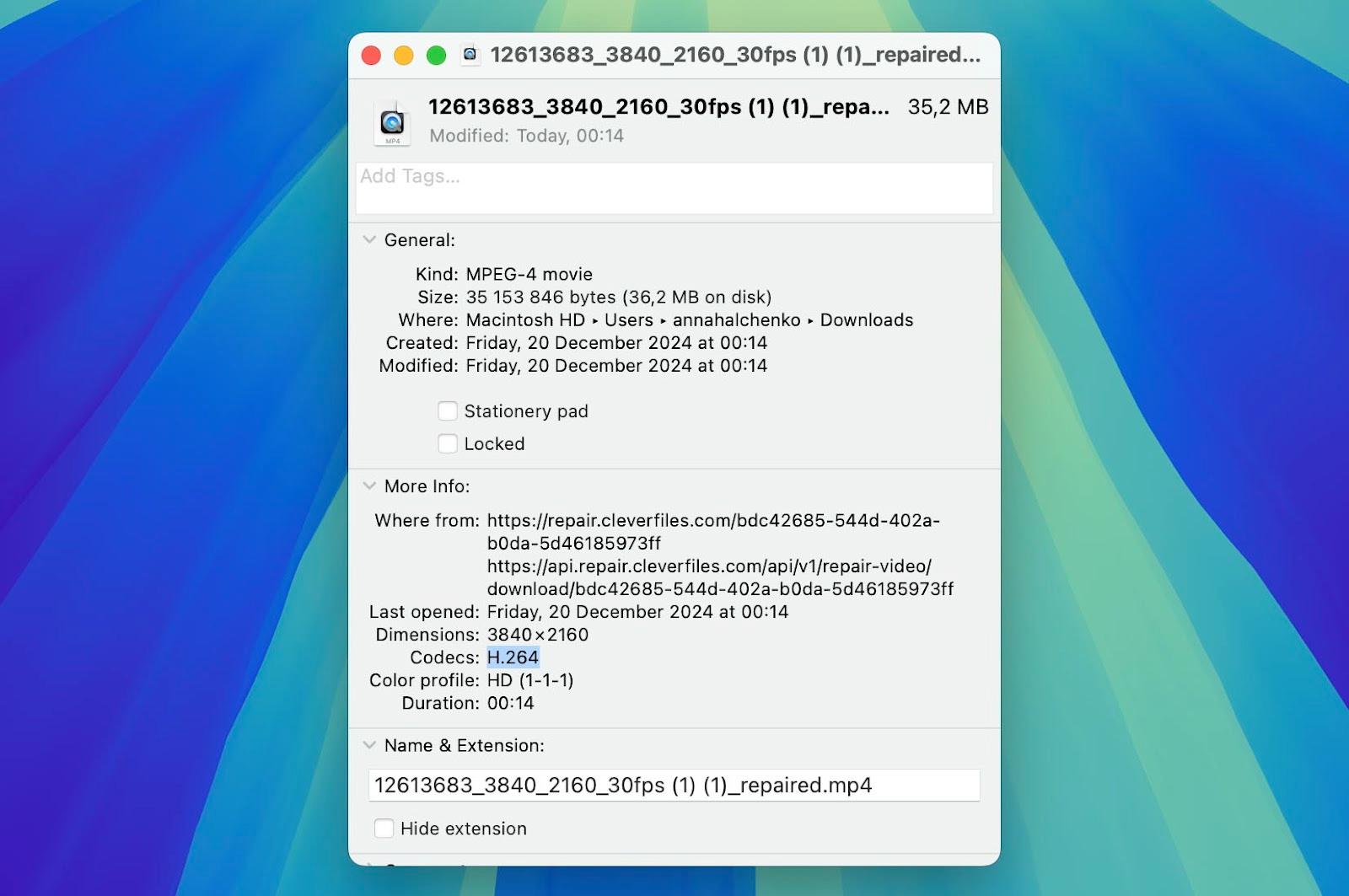
First, identify the codec of the video file that is not playing. You can use media information tools like MediaInfo for this purpose.
Note: Alternatively, if you are using a Mac, you can simply click on the video file, select “Get Info” from the context menu, and review the codec information
Compare this codec with those listed in your TV’s manual or on the manufacturer’s support site to confirm if there is a mismatch.
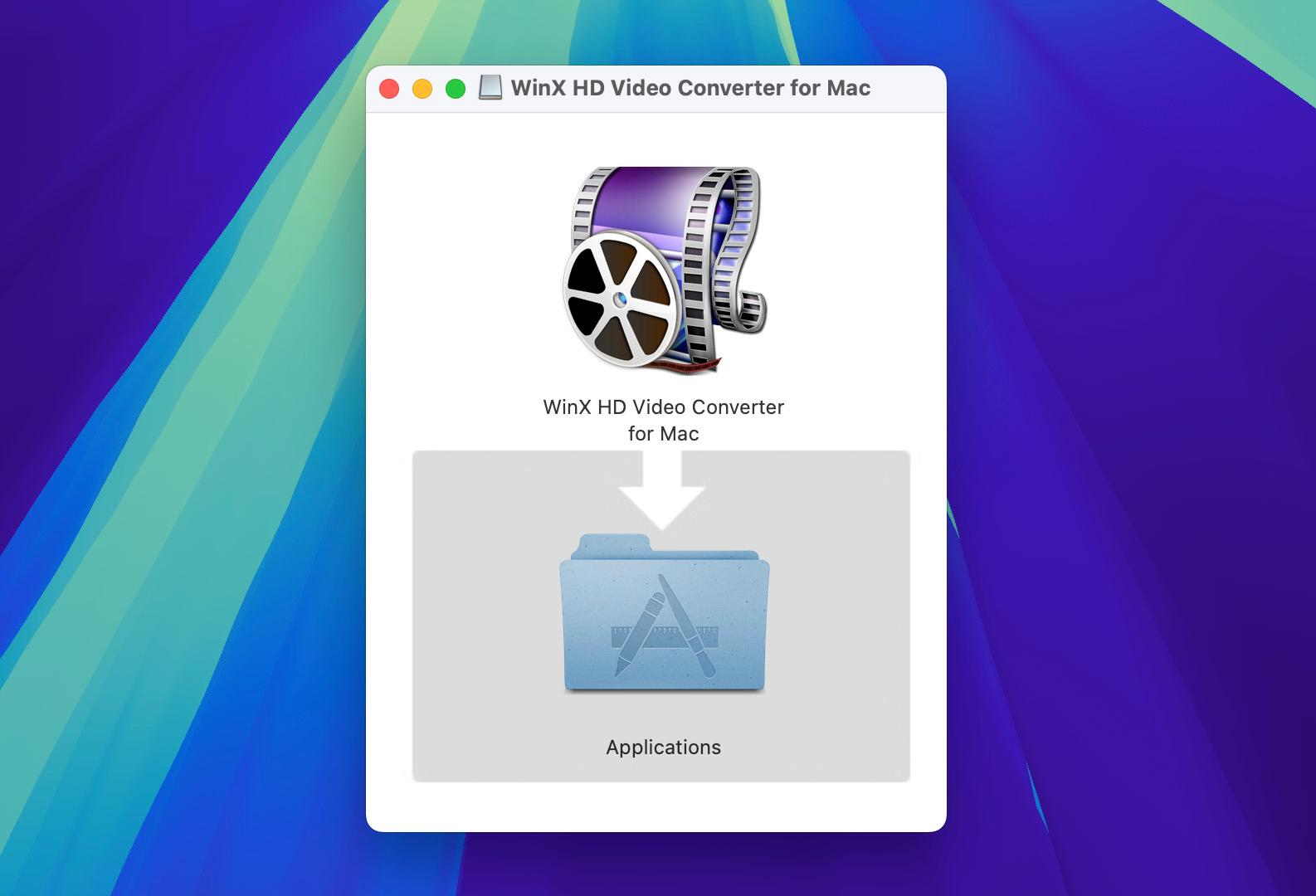
Download Winxvideo AI from its official website and install the software on your computer.
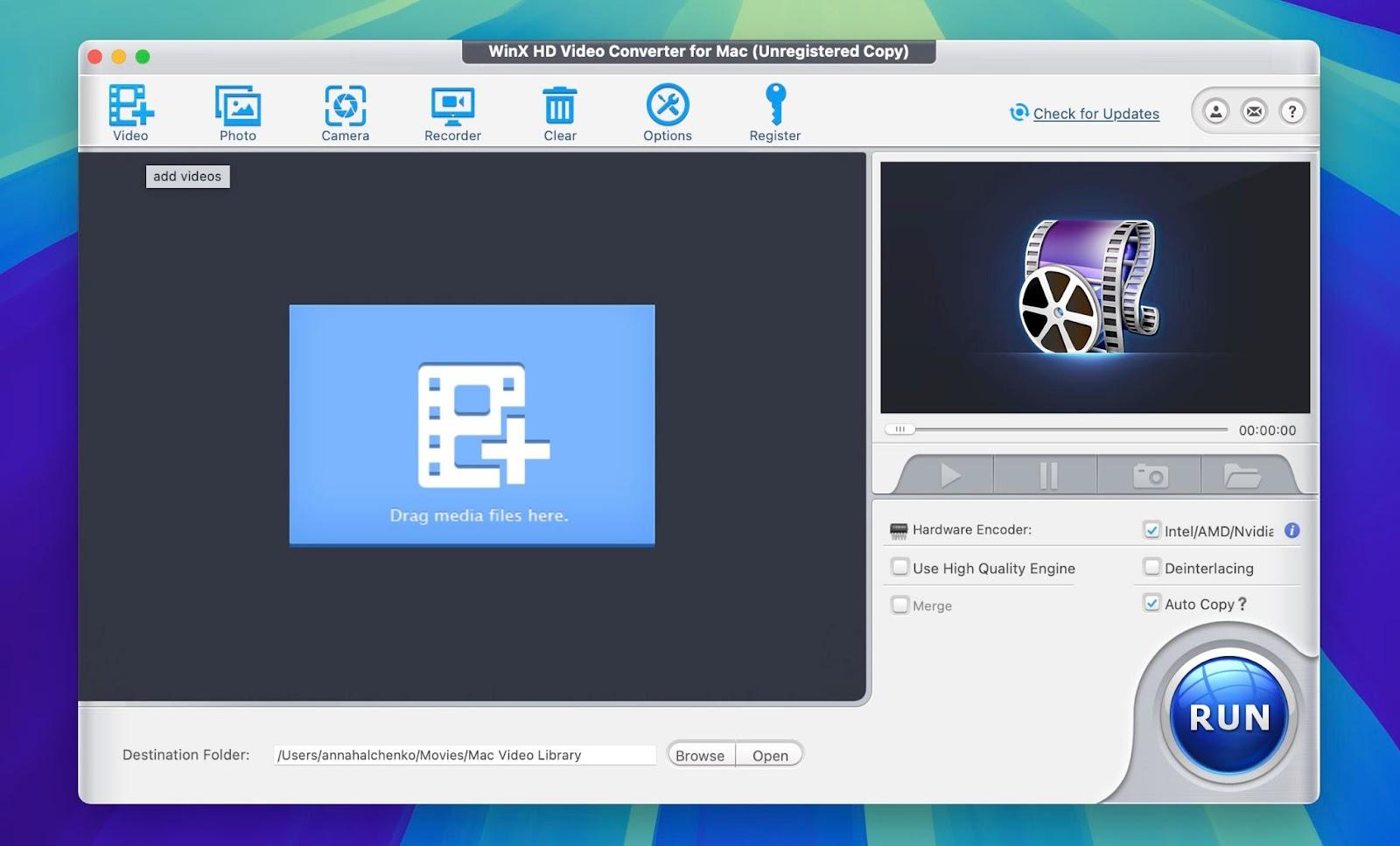
Launch Winxvideo AI and upload the video file that your TV cannot play into the software.
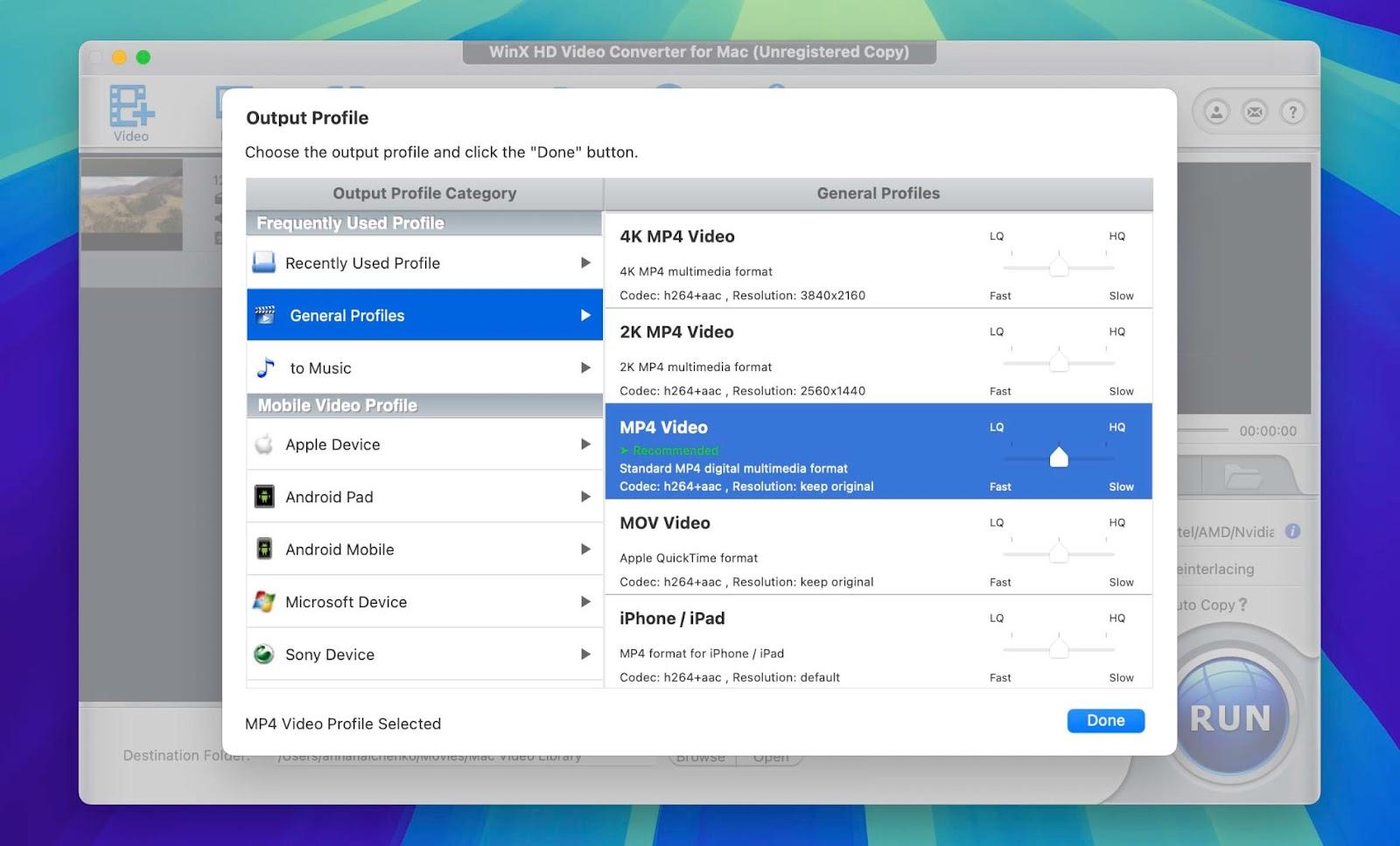
Click on the “Target Format” option at the bottom of the interface. Navigate to “General Profiles” and select “MP4 Video”.
Note: The MP4 format with h264 video and AAC audio codec is generally the most compatible option for most TVs.
Click “Run” to start the conversion process.
Method 4: Update the Software on Your TV
The final method we’ll discuss addresses scenarios where your TV fails to play any video, whether from externally connected devices or applications like Netflix and YouTube. In these cases, the problem may be due to outdated TV software. You must keep your TV’s software up to date because outdated software may not support new video formats and apps.
Navigate to the ‘Settings’ menu on your TV.
Scroll to ‘Support’ or ‘About’ and select ‘Software Update’.
Choose ‘Check for Updates’. If an update is available, your TV will prompt you to download and install it.
Follow the on-screen instructions to download the update. During this process, confirm your TV stays on and connected to the internet.
Once the download completes, the installation will start automatically. During the update, the TV might restart several times.
After the installation, go back to the ‘Software Update’ section and verify that your TV is running the latest software version.
A simple reset might help resolve minor glitches if no updates are available. First, turn off the TV and unplug it from the power outlet. Wait a few minutes, then plug it back in and turn it on. This process can clear temporary software issues that may cause video playback problems and restore normal functionality.
Conclusion
When your TV doesn’t play particular video files, it might initially seem like a complex issue. However, in this article, we demonstrated that you can solve the problem. The most important step is to correctly identify the main cause of the playback issue. Once you know the root cause, you should use one of the methods we described to resolve it. We hope this guide has provided the information you need to enable your TV to play your video content.
FAQ
What video formats are typically supported by most TVs?
Most TVs support popular video formats such as MP4, AVI, and MKV. They usually handle codecs like H.264 (AVC), MPEG-4, and HEVC (H.265). However, compatibility varies by manufacturer and model, so you should check your TV’s specifications for details.
Are there any free video repair tools besides Clever Online Video Repair that don’t have a file size limit?
Yes, Untrunc is a free video repair tool that doesn’t impose a file size limit. It operates through the terminal and requires additional installation of FFmpeg to function properly. Untrunc can repair videos when you have a good reference file from the same device. It demands more technical expertise but can fix severely corrupted video files, which makes it a good choice for those comfortable with command-line tools.
Can I use a reference video that was recorded on a different device than the corrupted video?
It is best to use a reference video recorded on the same device as the corrupted video. A reference from a different device might not provide the correct data needed for accurate repair, as differences in codec settings or file structure can impact the repair process.
What should I do if my TV doesn’t have a “Software Update” option in the settings menu?
If your TV lacks a “Software Update” option in the menu, you may need to visit the manufacturer’s website to find instructions for your specific model. Some older TVs require manual updates via a USB stick, while others may not support updates at all.
Will I lose any of my settings or data when I update my TV software?
Updating your TV’s software does not erase your settings or data. However, it’s a good idea to note your customized settings just in case you need to reconfigure them. Major updates might reset certain preferences back to default settings.