Smart homes are all about seamless connectivity, allowing devices to communicate effortlessly. One common desire among smart home enthusiasts is to mirror an iPhone's screen to a TV, whether for streaming videos, sharing photos, or presenting content. But many of them search for Miracast iPhone solutions only to discover that iPhones don't natively support this protocol. So what's the alternative, and how can you still enjoy seamless mirroring? Let's break it down.
Does iPhone Support Miracast?
The quick answer is no: iPhones do not support Miracast. Miracast is a wireless display standard widely supported by Android devices and Windows PCs. It allows screen mirroring without requiring a Wi-Fi network, essentially creating a direct connection between your device and a compatible TV.
Instead, Apple uses its own protocol called AirPlay, which is optimized for iOS and integrates tightly with the Apple ecosystem. AirPlay integrates seamlessly with Apple TV and many smart TVs that support AirPlay 2. Unlike Miracast, AirPlay often offers smoother performance, higher-quality video, and better compatibility within Apple's ecosystem.
| Feature | Miracast | AirPlay |
| Supported Devices | Android, Windows | iPhone, iPad, Mac |
| Requires Wi-Fi | Optional | Yes |
| Quality & Latency | Good, varies by device | High, usually low latency |
| Smart Home Integration | Limited | Excellent (works with HomeKit, Apple TV, smart speakers |
How to Mirror iPhone to Smart TV
Still, if you want to know how to Miracast on iPhone, there are third-party apps that bridge the gap, letting your iPhone connect to Miracast-enabled TVs. Let's look at both options.
Method 1. Using a Third-Party Miracast App
If you want to use Miracast with your iPhone, you'll need a compatible screen mirroring app. Many apps on the App Store allow iPhones to act as Miracast senders, connecting to Miracast-enabled TVs. Here's a general guide:
Step 1. Search for a trusted mirroring app that advertises Miracast support for iPhone. Install the app on your iPhone.
Step 2. Ensure both your iPhone and Miracast-enabled TV are on the same Wi-Fi network if the app requires it. Some apps may also support direct Wi-Fi connections.
Step 3. Open the app on your iPhone, select your TV from the available devices list, and initiate the connection. Once connected, your iPhone screen should appear on the TV.
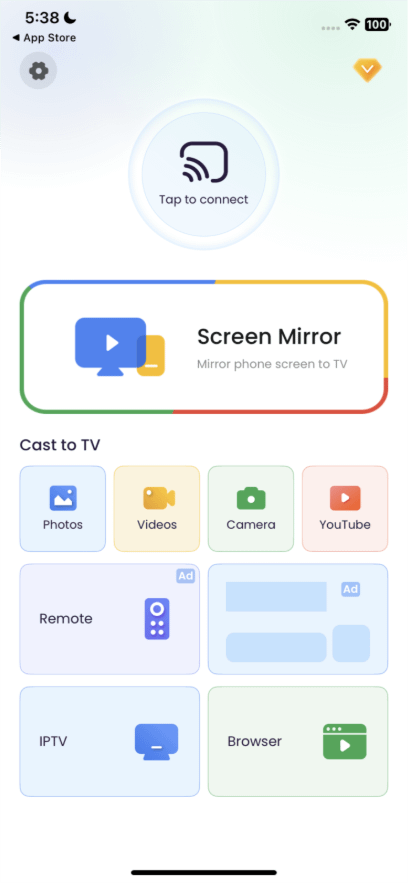
Step 4. Once your iPhone is mirrored, you can stream videos, display smart home dashboards, or control compatible devices from your TV screen, enhancing your smart home setup.
Tip: The performance of Miracast on iPhone can vary depending on the app and the TV model, so choose apps with good reviews and consistent updates.
Method 2. Using AirPlay and AirPlay Receiver App
AirPlay is the official method for screen mirroring on iPhone, and it works seamlessly with many modern smart TVs, such as LG, Samsung, Sony, Roku, etc. If your smart TV doesn't support AirPlay 2, you can connect an Apple TV to the TV as a receiver or set up an AirPlay receiver app (like AirMirror) on the device.
Step 1. Both your iPhone and the AirPlay-enabled TV must be on the same Wi-Fi network.
Step 2. Initiate AirPlay on your iPhone.
AirPlay works seamlessly with HomeKit. You can display security cameras, smart home dashboards, or stream media from apps while controlling other smart devices from your iPhone.
Conclusion
While iPhones do not support Miracast natively, third-party apps can bridge the gap for users who prefer Miracast-compatible TVs. For a more seamless and reliable experience, AirPlay remains the best choice, especially in a smart home ecosystem.
By understanding how to Miracast on iPhone and leveraging AirPlay, you can fully integrate your iPhone with your smart home entertainment setup, turning your TV into a central hub for media, apps, and smart home control.





Privacy Policy
Terms and Conditions - Affiliate Policy
Home Security
© Copyright 2008-2026.
11816 Inwood Rd #1211, Dallas, TX 75244